Start with one folder job, not one folder per subject
The best folder label says what the student must do next. A label such as “Math” identifies a subject, but it does not stop unfinished work from hiding under old worksheets. A better system separates action: “Math — To Do,” “Math — Turn In,” and “Math — Keep.” That small change turns a folder from a storage pocket into a visible work queue.
Why homework vanishes in ordinary folders
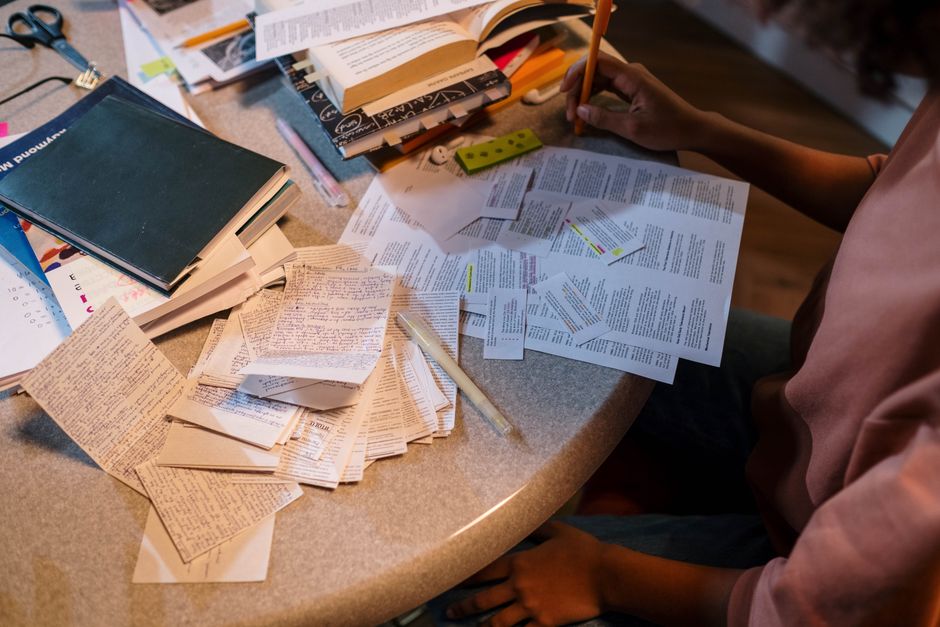
Most students place a new worksheet on top of a mixed pile. After a few days, the pile contains blank forms, completed work, permission slips, graded papers, and notes from the teacher. The student may remember the assignment but cannot find the page. A label system fixes the search problem by giving every paper one clear destination.
Use three categories for younger students and four for older students. “To Do” holds unfinished work. “Turn In” holds completed work that still needs to leave home. “Keep” stores reference sheets. Add “Returned” only when graded papers need to be reviewed or filed. Do not create a separate folder for every tiny paper type. Too many choices slow the routine and encourage random stuffing.
The label wording that works best
Put the subject first, then the action. “English — To Do” is faster to scan than “Papers That Need Finishing for English Class.” Keep each label under 24 characters when possible. Use the same wording on the folder, the homework checklist, and any desktop tray. For a child who reads slowly, add a color and a simple symbol: blue plus a pencil for unfinished work, red plus an arrow for papers going to school.
My clear recommendation is a two-folder minimum for every class: one marked “To Do” and one marked “Turn In.” Add “Keep” when reference papers pile up. This gives students a system they can remember after a long school day.
Build the labeling system in five quick steps
A good setup takes about 20 minutes. Do it once at the start of a term, then repair worn labels instead of rebuilding the whole system.
1. Empty every current folder
- Put all papers on a table.
- Make four piles: unfinished, ready to submit, reference, and discard.
- Recycle duplicates and outdated notices.
- Ask the student about any paper that cannot be identified.
2. Choose the smallest useful folder set
- Give each subject a “To Do” and “Turn In” folder.
- Use one shared “Keep” folder for study guides and long-term notes.
- Add a “Parent” folder only for forms that require an adult signature.
3. Label both sides that matter
Place the main label on the front cover or tab where it can be read inside a backpack. Add a smaller name-and-class label on the back. Write the student’s name, teacher, and class period. That second label helps when a folder is left in a classroom or mixed with a sibling’s supplies.
4. Add a deadline strip
Write “Due: ______” on a removable label or use a small sticky note inside the front cover. The folder should answer three questions: what subject is this, what action is next, and when is it due? If it cannot answer all three, the label system is incomplete.
Use colors to speed scanning, not to replace words

Color coding helps only when each color has one stable meaning. A blue folder should not mean math on Monday and unfinished work on Friday. Give colors to subjects, then give words to actions. For example, blue means math, green means science, and yellow means English. Inside each subject, use the words “To Do” and “Turn In.” The student can then identify both the class and the next step within seconds.
A simple color map for six classes
Use blue for math, green for science, yellow for English, orange for history, purple for a language class, and red for forms or parent signatures. Match folder color, notebook stripe, and digital calendar color. Avoid using red for ordinary homework because many children read red as “urgent” or “problem.” Reserve it for papers that need an adult response.
Make labels readable from a backpack
Use bold black type at about 14 to 18 points for printed labels. Place the text along the folder tab rather than at the bottom of a pocket, where loose papers cover it. For handwritten labels, use block letters and a dark felt-tip pen. Do not use pale gel pens, decorative script, or tiny text. A beautiful label that cannot be read in a crowded backpack has failed its job.
My verdict: use color as a quick visual cue and words as the real instruction. Students need meaning, not just a rainbow.
Fix the failure points that make labels useless
Labels rarely fail because the wording is wrong. They fail because the routine around them is too hard. A folder marked “Turn In” does nothing if completed homework stays on the kitchen counter. The physical system and the handoff routine must connect.
Failure mode: one folder holds everything
A single “School” folder looks tidy at first, then becomes a paper drawer. Students cannot see which pages need action. Split the folder by task or subject before the pile grows. If a student has more than eight folders, reduce the set. A system that needs constant sorting will not survive a busy week.
Failure mode: labels peel off
Dusty plastic and textured folder covers do not hold ordinary paper labels well. Wipe the surface first, press the label from the center outward, and cover it with clear tape if the folder is handled daily. For plastic folders, laminated Brother or DYMO tape is the strongest practical option. Replace a peeling label immediately; guessing the folder’s purpose defeats the whole setup.
Failure mode: the student cannot tell what is finished
Do not label a folder only “Homework.” Use “To Do” for unfinished pages and “Turn In” for completed pages. Put a small arrow on the “Turn In” label pointing toward the backpack pocket. That physical cue makes the final step obvious.
When not to buy a label maker
Skip a label maker if the student changes classes often, loses supplies weekly, or needs a temporary system for a short summer course. Avery labels, masking tape, or index cards are cheaper and easier to replace. Buy the Brother P-touch PT-D210 only when durability and repeated labeling justify the extra cost.
Q&A: what should each folder label say?

Should labels use the subject or the teacher’s name?
Use the subject first because students think about the assignment by class. Add the teacher’s name in smaller text when several teachers teach the same subject. “Science — To Do — Ms. Patel” is clearer than “Ms. Patel” alone, especially when a student has multiple science periods or changes teachers during the year.
Should a folder say “Due Today”?
Use “Due Today” as a temporary sticky note, not a permanent folder label. Deadlines change, but the folder’s main job does not. A removable note can move from the “To Do” folder to the backpack when the student finishes the work. Permanent labels should describe a stable category.
What should a student do with graded homework?
Use a “Returned” pocket only if the teacher’s feedback matters for later tests or projects. Otherwise, review the grade, photograph useful comments if needed, and recycle the paper at the end of the week. Keeping every returned worksheet creates another pile that eventually hides active work. The best system keeps current tasks visible and moves old papers out quickly.
How often should labels be checked?
Check them once each Friday for about five minutes. Replace labels that are peeling, remove dead papers, and confirm that the “Turn In” folder is empty or contains only work with a clear next step. Weekly maintenance is enough for most students. Daily adult inspection creates dependence and turns organization into a parent-controlled task.
Choose the setup that matches the student
The right system is the one a student can follow without a lecture. A young child may need large printed words and three colors. A secondary student may prefer compact tab labels and a single deadline sheet. The label maker is a tool, not the system itself.
| Student situation | Best setup | Clear verdict |
|---|---|---|
| Early reader or young student | Large words, subject colors, pencil and arrow symbols | Use printed Avery labels with icons added by hand |
| Busy middle-school student | Subject folders plus “To Do” and “Turn In” tabs | Use Brother P-touch PT-D210 for durable labels |
| Student with many loose handouts | One shared “Keep” folder and weekly recycling | Reduce categories before buying supplies |
| Short-term class or changing schedule | Removable tape and index cards | Do not buy a label maker yet |
| Multiple children sharing supplies | Name, teacher, class period, and color code | Use labels with full identifying details |
For most families, the winning setup is simple: two labeled folders per subject, one shared reference folder, and a five-minute Friday reset. Use Avery 5160 labels for the lowest cost, Brother P-touch PT-D210 for long-lasting labels, and the DYMO LabelManager 160 when basic portable labeling matters more than formatting. The system stops homework from vanishing because every paper has a visible destination.